

How To Create Django Project In Spyder
Let's see how we can create a Django project when you are using Anaconda as your default Python. We do this process by creating a new environment.
Anaconda is a free and open-source distribution of the Python programming language for scientific computing, that helps to simplify package management and deployment. I highly recommend you to use Anaconda for your Python projects, if you are not using it already. Anaconda software makes life very easy.
I have been doing projects in Django for a while. A few weeks ago, I installed Anaconda for machine learning studies and made it my default Python. Then I was back to doing my Django projects but my CMD was not able to run Django using the commands that I have been using previously.
To solve these issues, I did some research over the Internet, but couldn't find the right solution either from YouTube and Google. Finally, I got the solution after trying various things. So if you are dealing with such a situation, this article may help you.
If you are using a Windows operating system, follow along with this tutorial. I think the procedure is very similar in Mac and Linux too. So, you can follow along with this article even if you are not using Windows.
How To Create A Django Project In Anaconda?
Here are the steps that you need to follow to create a Django project in anaconda:
1. Create a new environment
First of all, you need to create a separate environment for Django development.
By default, anaconda comes up with the base environment. But creating a separate environment will be helpful to manage the projects without any package dependency confliction.
So, let's create a separate environment specifically for web development projects using the Django framework.
Open your CMD or Anaconda Prompt and create a separate environment called djangoenv by typing in the following command.
conda create -n djangoenv python=3.6 anaconda I just mentioned the version of Python that I'm using as Python 3.6. If you want to use other versions of Python, you can do so.
The previous command may take some time to finish its execution. Once it is done, let's go to the next step.
2. Activate the new environment
Activate the newly created environment by typing in the following command.
conda activate djangoenv Now, we are inside the newly created environment. But our environment does not have Django in it. So, let's install it.
3. Install Django in the new environment
Let's install Django in the new environment using the following command.
conda install -c anaconda django Wait till the installation completes. It may take some time to finish. That's it. Now you can create Django projects in this separate environment.
Let's try to create a sample project to check whether everything is ready. Let's do this using the following commands.
4. Create a new Django project
First of all, let's start a new project called website.
django-admin startproject website 5. Run the Django server
Now, navigate to the project folder by using the cd command. Let's run the project and see whether everything is working fine or not.
python manage.py runserver If you are on a Mac or Linux, use python3 manage.py runserver instead of the command given above.
Once you've done that, a URL will be generated on the command line. Now, copy the URL that is generated and paste it on a new tab in your browser.
That's it. Everything is set up nicely if you can see this rocket launching up towards the sky.
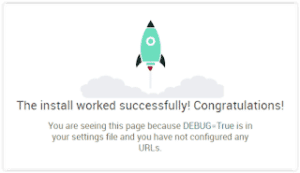
Your Django environment is ready. After this, you can open Command Prompt or Anaconda Prompt whenever needed, and start doing the project just by activating the environment for Django.
The following command is used whenever we need to activate the Django environment.
conda activate djangoenv Do these steps and create stunning projects using your favorite backend web framework "Django", without changing your Anaconda setup.
What if Anaconda does not work?
If you have any trouble using the Anaconda software, then there is an alternative option available for you. This software is called Miniconda, which is a lightweight version of Anaconda.
Miniconda is a software from the Anaconda family itself. They made this light version for people having problems using the big fat Anaconda software. I had a lot of problems using Anaconda at times.
So, I switched to Miniconda software. The only problem is that you will not get the Anaconda user interface in Miniconda. But, if you are comfortable using the command line, you can use this software since it provides the Anaconda prompt.
It is always better to use this software for your Python projects rather than using your default Python software. You can install Miniconda by going to their website.
Creating Django Projects
Doing projects is the most important thing that you can do to become a better developer. If you learn the entire syntax of Python and Django and never do a project, then there is no point in your learning.
Django is a difficult framework to learn, especially for absolute beginners. You should get a feel for the framework by doing projects and exercises.
At first, it may seem overwhelming. But after you do some projects, you will figure out a process that can be repeatable. If you can stay motivated and figure out a way to do many projects in Django, you can become a back-end web developer or even a full-stack web developer.
Also, doing a portfolio of amazing projects will increase your chances of landing your dream job. I recommend you create a portfolio of projects so that you can display all the work that you have done at a single location.
It is a good practice to upload your code to GitHub or other coding repositories after you've finished each project.
If you are interested in creating projects in Django, but you don't know what to create, then I have a resource for you. I've written an article on 12 Django Project Ideas for Beginners, which you can steal right away and implement. Oh, by the way, I've added some tutorials along with each idea to help you. Make sure you check it out.
I hope this article would be helpful for you in some way. If you encounter any issues or doubts, please feel free to ask them in the comments section. I will be happy to help you. Also, share this article with your friends so that it will be helpful to them as well.
Happy coding!
How To Create Django Project In Spyder
Source: https://pythonistaplanet.com/how-to-create-a-django-project-in-anaconda-very-easily/
Posted by: stopsalave1946.blogspot.com
0 Response to "How To Create Django Project In Spyder"
Post a Comment